

Bluetooth & App Setup
Download the App
Section titled “Download the App”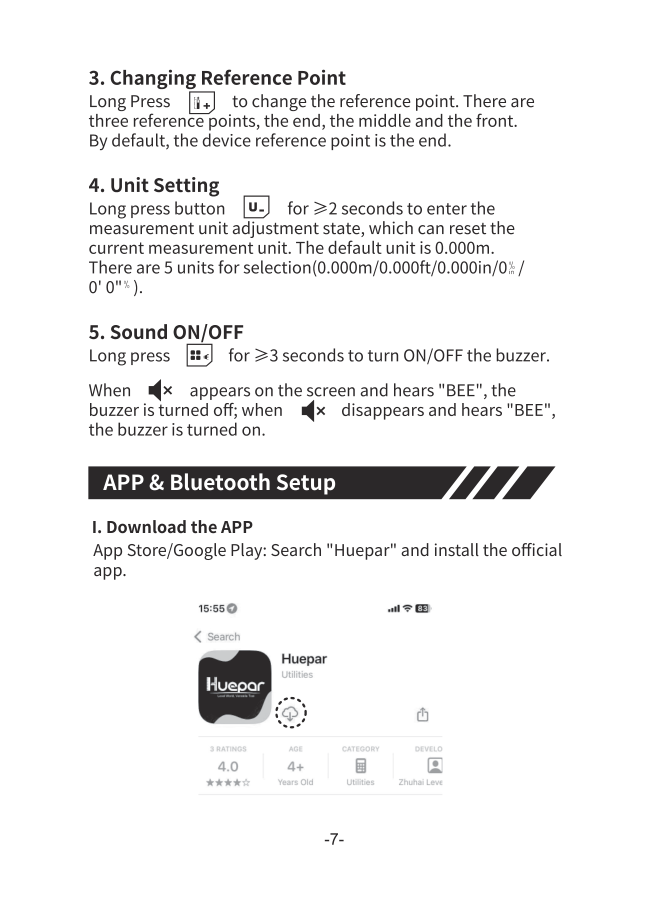
Search for “Huepar” in the iOS App Store and install the official app.
Search for “Huepar” in the Google Play Store and install the official app.
Visit https://app.huepar.com/download in your phone’s browser.
Bluetooth Connection
Section titled “Bluetooth Connection”Before You Start
Section titled “Before You Start”On the device:
- Turn on the laser measure
- It will automatically be ready to pair
On your phone:
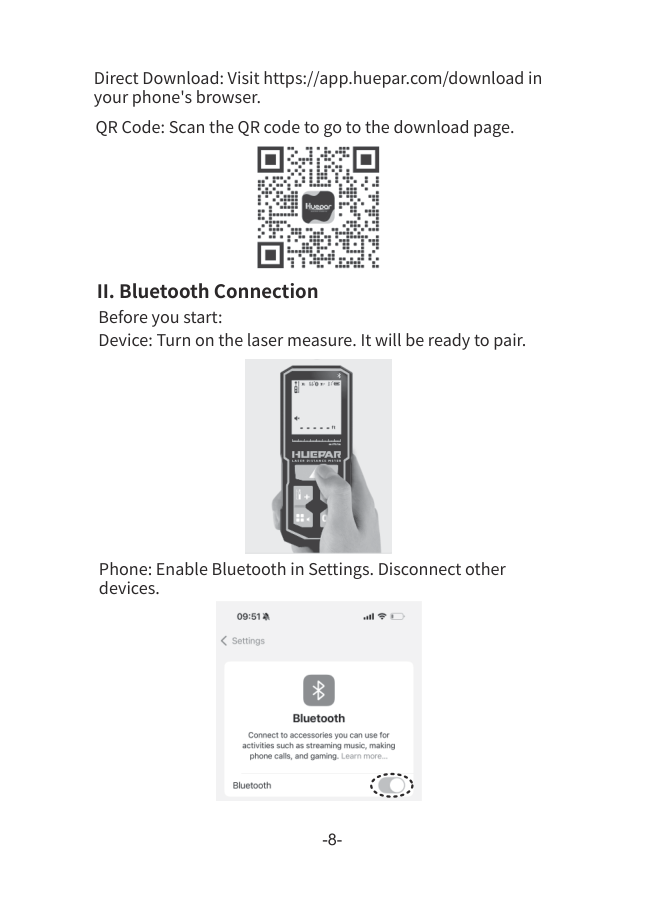
- Enable Bluetooth in Settings
- Disconnect from other Bluetooth devices
Connection Steps
Section titled “Connection Steps”-
Open the Huepar app
Tap “Add Device” on the main screen
-
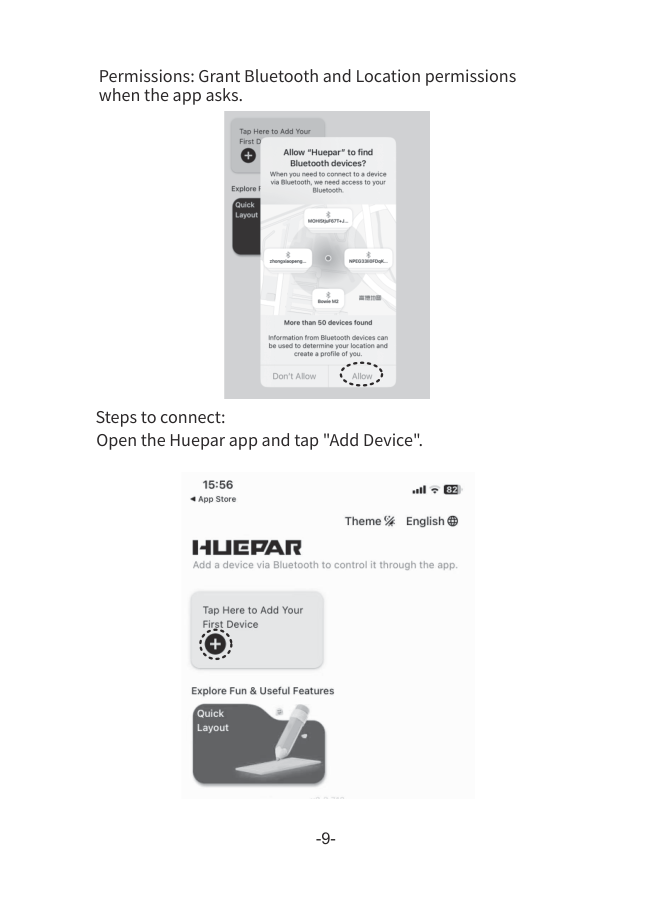
Grant permissions
Allow Bluetooth and Location permissions when prompted
-
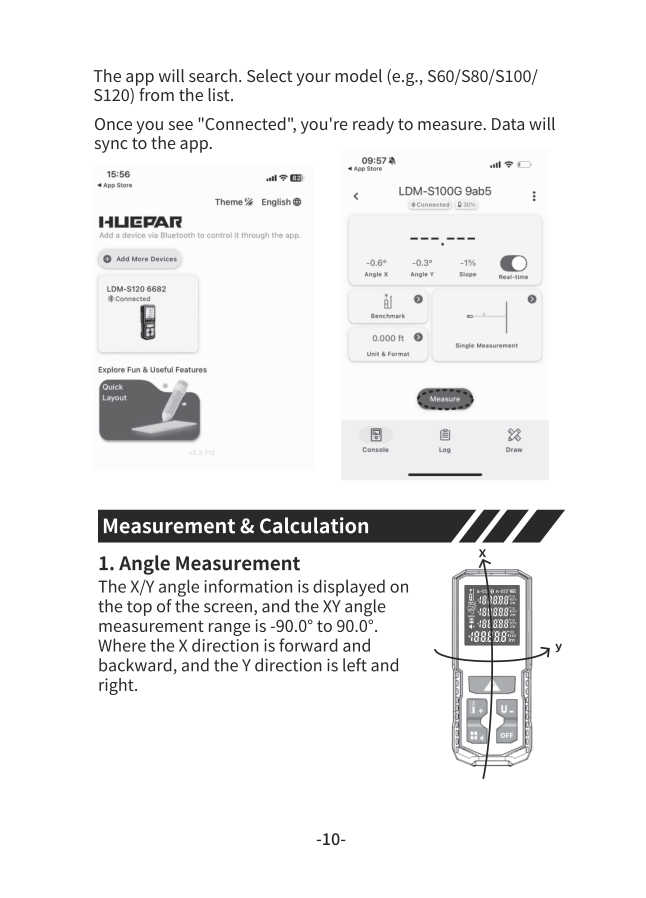
Select your device
The app will search for nearby devices. Select your model (S60/S80/S100/S120) from the list.
-
Confirm connection
Once you see “Connected”, you’re ready to measure. Data will sync automatically.
App Features
Section titled “App Features”Once connected, the Huepar app provides:
| Feature | Description |
|---|---|
| Real-time Sync | Measurements appear instantly in the app |
| Remote Control | Trigger measurements from your phone |
| Data Storage | Save unlimited measurements to the cloud |
| Export | Export data to CSV, PDF, or share directly |
| Floor Plans | Sketch room layouts with your measurements |
Troubleshooting
Section titled “Troubleshooting”Common Issues
Section titled “Common Issues”| Problem | Solution |
|---|---|
| Device not found | Ensure laser is on; restart Bluetooth |
| Connection drops | Move closer; check battery level |
| App crashes | Update to latest version; restart phone |
| Data not syncing | Check internet connection for cloud sync |